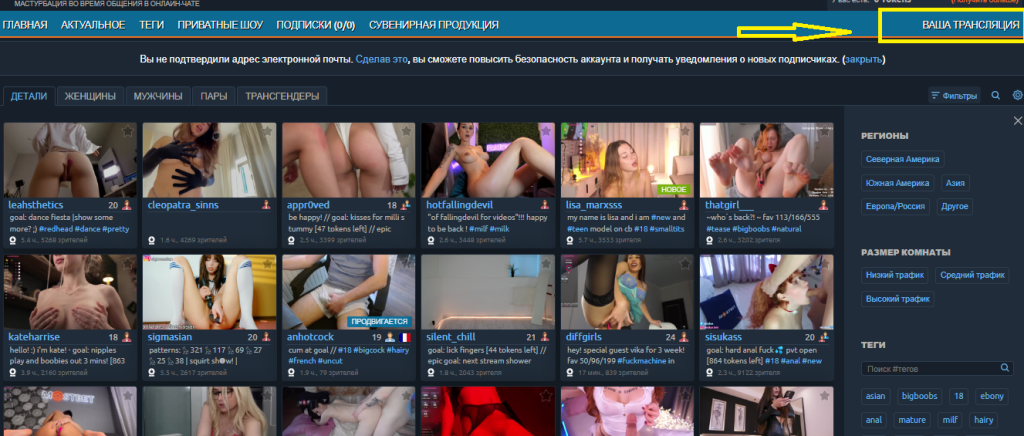
Well, after all the work with registration, verification, wallet registration and attaching it to the Chaturbate account, it’s time to get to work. After all, we all came to earn money on Chaturbate. To start the broadcast, click on the “Your broadcast” link as shown in the screenshot:
We agree to the policy regarding underage users and move on.
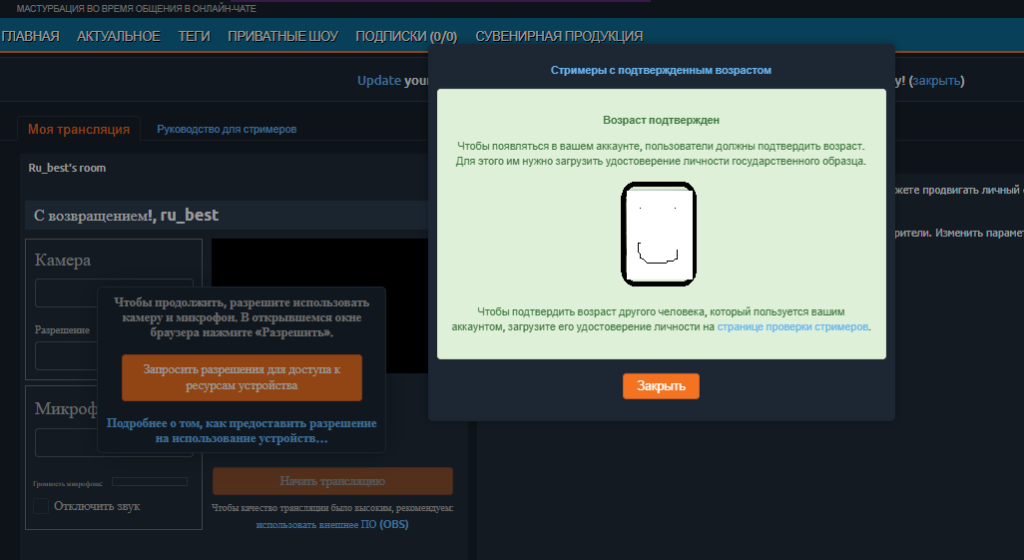
Here we are warned about who has been verified and can appear in broadcasts on your Chaturbate account, and how to add new participants. We close this message. Now we need to give permission to use the camera and microphone for our broadcasts, to do this, click the orange button on the left.
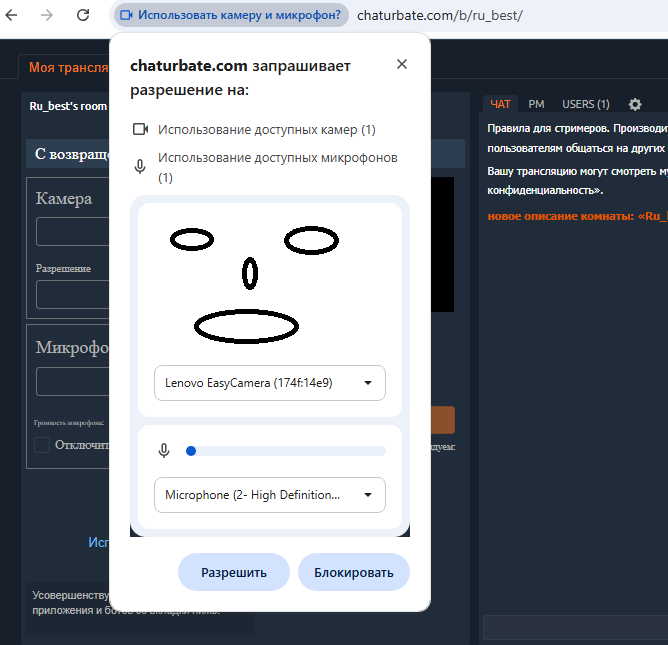
We allow the use of the camera and microphone we selected and see the following:
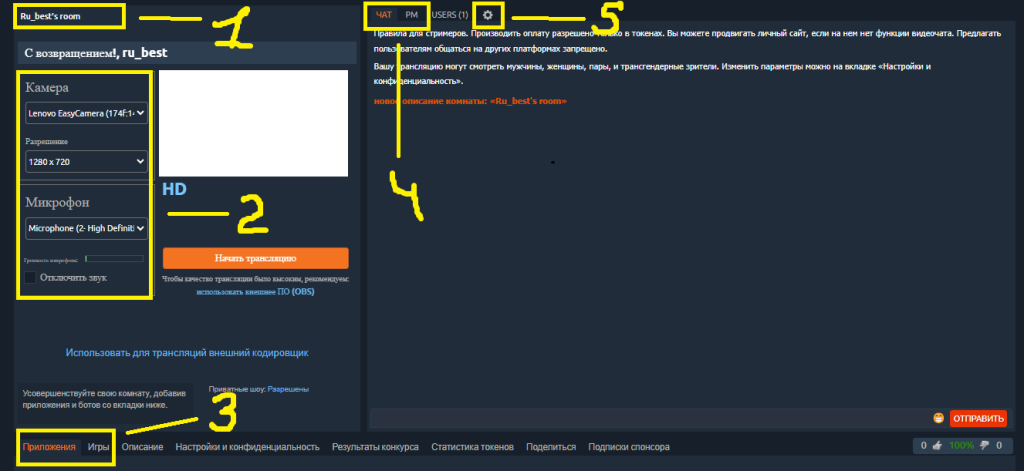
Let me explain what’s going on here:
- Your room description is in the list of all rooms, you can add hashtags here. To change the description, just click on it. To see a list of popular Chaturbate hashtags, follow the link or the tags tab, on Chaturbate itself.
- Choosing and setting up a camera and microphone. You need to experiment here, sometimes it is better to choose a lower quality, but the picture will be smoother without glitches.
- Connecting to the broadcast of applications, bots, as well as games. We will tell you about some of them on our website in the “Apps&Bots” section
- Switching between a shared chat and private messages with individual users. By the way, the box where you can write an SMS is not circled on the screen, but I think it’s clear that next to the “send” button…
- Setting up our chat room, who can write to us, who to report, and so on… We could go into more detail on this point, but the site has been Russified quite well recently, so I think everything should be clear.
When everything is ready, click the “Start Broadcast” button to start working. And to end the broadcast after finishing work, click “End Broadcast” as in the screenshot:
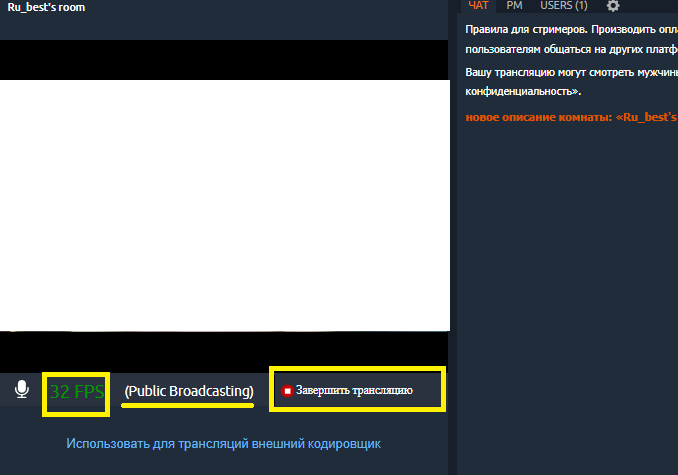
Also pay attention to the numbers circled on the left, it is for their sake that you need to experiment with the choice of camera resolution before starting the broadcast. In short, the higher this number, the better your broadcast looks for viewers. And the numbers change color, depending on the quality of your video. Green is good, red is bad.